


How to Stop Sharing Location on iPhone without Then Knowing
Location sharing is a useful feature on iPhones, especially for tracking family members or finding friends through apps like Find My. However, there may be times when you no longer wish to share your location with someone—without them finding out. Whether you're seeking privacy or simply need a break from location sharing, there are several methods to stop sharing your location discreetly.In this article, we'll walk you through the most effective ways to stop sharing your location on your iPhone without notifying the person you're sharing it with.
- Contents:
- Why You Need to Stop Sharing Location without Notification
- Method 1: Turn Off Share My Location in Find My App
- Method 2: Disable Location Services for Specific Apps
- Method 3: Use Airplane Mode to Temporarily Disable Location Sharing
- Method 4: Turn Off Location Sharing for Individual Contacts in Messages
- Method 5: Use a Location Spoofer (Advanced Option)
- FAQs about Stopping Location Sharing on iPhone
Why You Need to Stop Sharing Location without Notification
There are several reasons why you might want to stop sharing your location on your iPhone:
- Privacy Concerns: You may want more control over who can track your movements.
- Personal Boundaries: You might need space from people who are tracking your location constantly.
- No Need for Location Sharing: Some people may no longer need to track your location after an event or trip.
- Test or Experiment: Developers or testers may need to stop location sharing temporarily without others noticing.
No matter the reason, it’s crucial to do this in a way that doesn’t raise suspicions. Now you can deep into the steps to stop sharing iPhone location.
Method 1: Turn Off Share My Location in Find My App
The Find My app is the default way for iPhone users to share their locations. Disabling Share My Location will stop others from tracking you through this feature. Fortunately, it’s possible to do this without triggering a notification.
Step 1: Open Find My app and tap Me option in the lower right corner.
Step 2: Turn off Share My Location.
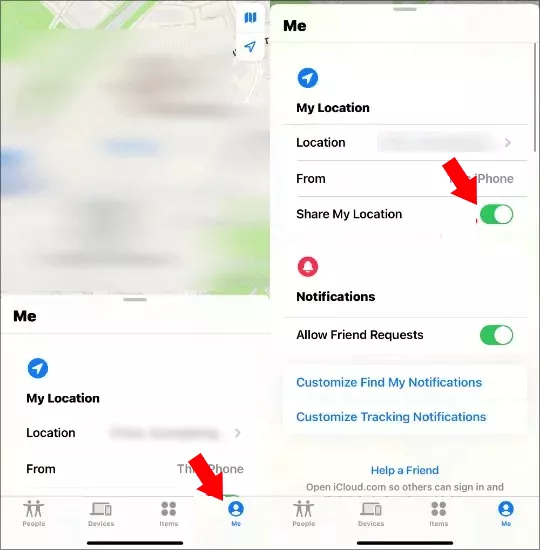
After that, the person you're sharing with will no longer see your location in the Find My app or any other app linked to location sharing (like Messages or FaceTime). If someone tries to track you through Find My, they won’t be able to locate you, but they won't be directly notified either. It just won't show your location.
Method 2: Disable Location Services for Specific Apps
Sometimes, it’s not about turning off location sharing entirely but rather stopping location access for specific apps. You can manually manage which apps have permission to track your location.
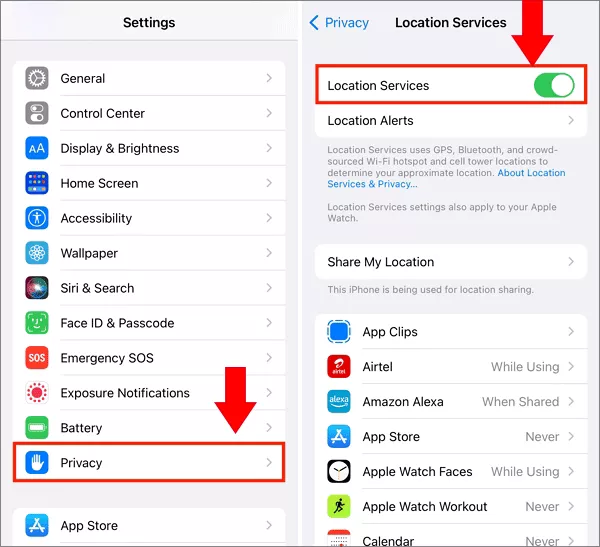
Step 1: Open the Settings app.
Step 2: Scroll down and tap Privacy.
Step 3: Tap Location Services. You'll see a list of all apps that have access to your location. Tap on any app, and choose from the following options:
Never: The app can never access your location.
While Using the App: The app can only access your location while you're actively using it.
Always: The app can access your location at any time.
If you disable location access for apps like Find My or Messages, people won't be able to track your location. This method is ideal if you only want to stop sharing with specific people or apps without completely disabling location services.
Method 3: Use Airplane Mode to Temporarily Disable Location Sharing
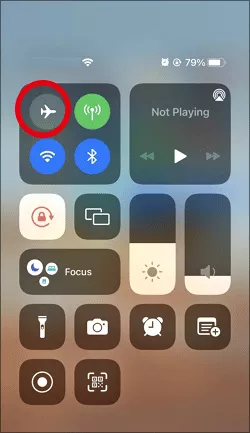
One quick and temporary way to stop sharing your location without them knowing is by enabling Airplane Mode. This turns off all wireless communication, including GPS, which prevents your device from sharing your location.
Step 1: Swipe down from the top-right corner of your screen (on iPhone X or later) or swipe up from the bottom (on older models).
Step 2: Tap the Airplane Mode icon to enable it.
While Airplane Mode is on, your iPhone will not send or receive location data. Your location will not be shared with any app or service. This method only works while Airplane Mode is active. As soon as you disable it, your location sharing will be re-enabled.
Method 4: Turn Off Location Sharing for Individual Contacts in Messages
You can stop sharing your location with specific people through the Messages app without turning off location sharing entirely. This is perfect if you only want to stop sharing with one person but still share with others.
Step 1: Tap the Messages app and open the conversation with the person you no longer want to share your location with.
Step 2: In the top-right corner of the conversation screen, tap the i icon (information).
Step 3: Under the Location section, you’ll see the option Stop Sharing My Location. Tap it, and your location will no longer be shared with that contact.
After that, the person will no longer be able to see your location in the conversation. However, they won't receive a notification that you’ve stopped sharing.
Method 5: Use a Location Spoofer (Advanced Option)
If you're looking for a more stealthy approach, you can use a location spoofer app to change your iPhone’s location temporarily. Spoofing apps let you set a fake location on your iPhone, making it appear as if you’re somewhere else entirely. Cocosenor Locationgo is one of the popular location spoofer apps that can help you to fake the iPhone location. It makes it super easy to change the iPhone location without notifying anyone.
Step 1: Install Cocosenor Locationgo and make your iPhone connected to the computer.
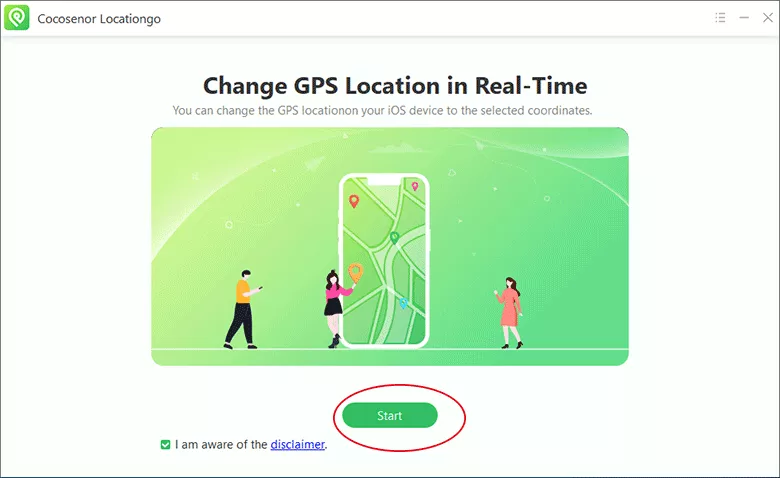
Step 2: Click the Start button on the main interface.
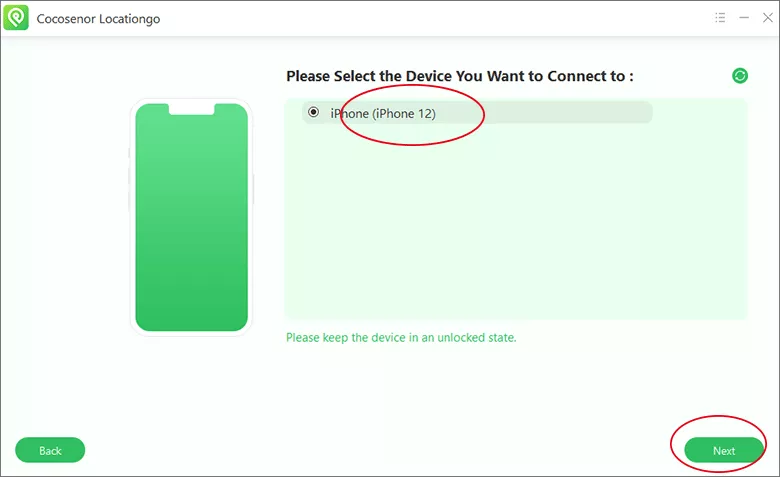
Step 3: After your iPhone is detected, click the Next button to move forward.
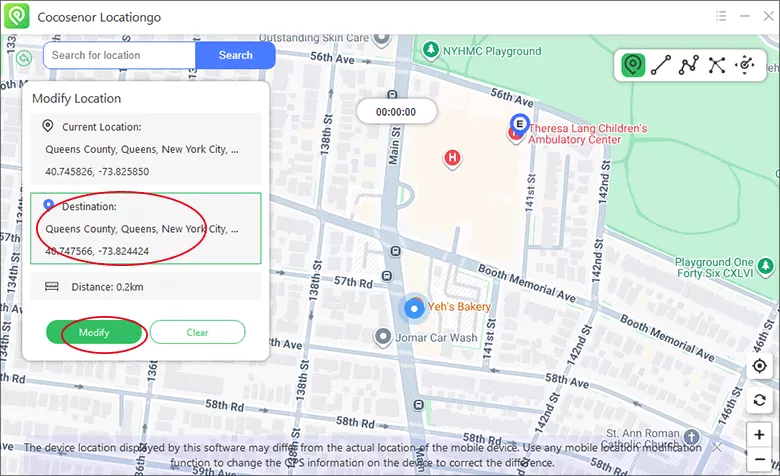
Step 4: Now you can see the current location of your iPhone. Choose a new location for your iPhone. It can be anywhere in the world.
Step 5: Click the Modify button to activate the fake location, and your phone will show that you are somewhere else.
This method hides your true location by replacing it with a fake one. The person you’re sharing your location with will see the new, fake location instead of your real one.
FAQs about Stopping Location Sharing on iPhone
1. Can the person I'm sharing my location with know if I stop sharing it?
No, when you stop sharing your location using the methods outlined in this article (such as turning off Share My Location in the Find My app or using Airplane Mode), the person you're sharing it with won’t be directly notified. However, if they attempt to track your location, it will appear as though your location is unavailable or not updating.
2. How can I stop sharing my location with just one person?
You can stop sharing your location with specific people using the Messages app. Simply open the conversation with that person, tap on the i icon, and select Stop Sharing My Location. This will prevent them from seeing your location, but they won’t be alerted that you’ve turned it off.
3. Will turning off Location Services stop location tracking entirely?
No, turning off Location Services will prevent most apps from accessing your location, but certain services (like emergency calls or your carrier) may still be able to track your location. To stop location sharing specifically, you should also turn off Share My Location in the Find My app or manage app permissions individually.
4. Is using Airplane Mode a good way to stop sharing my location?
Airplane Mode can temporarily stop your location from being shared by disabling GPS and all wireless communication, including cellular and Wi-Fi connections. However, this method is not ideal for long-term use since it disables all other services, including calls and internet access. It’s best used as a short-term solution.
5. Can I hide my location without turning off location services?
Yes, you can hide your location by selectively turning off Share My Location in the Find My app or by adjusting the settings in specific apps like Messages. This allows you to hide your location without completely disabling all location services on your device.
Conclusion
Stopping location sharing on your iPhone doesn’t need to be a hassle, and you can do it discreetly without notifying others. Whether you're simply seeking privacy, need a break from location tracking, or want to stop sharing with specific contacts, there are plenty of ways to achieve this on your iPhone. From turning off Share My Location in the Find My app to using Airplane Mode temporarily, you can manage your privacy and ensure you only share your location when you choose to.



